


Imagine starting your workday without having to sort dozens of emails, copy information between spreadsheets, send routine reminders, or prepare the same reports you created last week. Instead of spending hours on administrative work, you could focus on managing projects, solving problems, and completing tasks that genuinely require your attention.
This is possible with office automation, and you don’t need programming skills to get started.
Today, no-code automation tools allow employees and businesses to connect everyday applications, create automated workflows, and handle repetitive activities through visual interfaces. AI-powered tools can take things further by summarizing documents, categorizing messages, extracting information, and helping prepare routine responses.
Whether you work in HR, administration, marketing, finance, or management, learning how to automate repetitive office tasks without coding can help you save time, reduce manual errors, and improve workplace efficiency.
In this guide, you’ll discover which office tasks are worth automating, which tools to use, how to create your first workflow, and how to ensure automation doesn’t compromise accuracy or control.
What Is Office Task Automation?
Office task automation is the use of software, digital tools, and predefined workflows to perform routine workplace activities with minimal manual involvement.
Instead of completing the same process repeatedly, you configure a system to perform specific actions whenever a particular event occurs or a scheduled time arrives.
For example, imagine your company receives job applications through an online form. Normally, an HR employee might need to:
- Open each application.
- Review the candidate’s information.
- Copy their details into an Excel spreadsheet.
- Save their CV in a designated folder.
- Notify the recruitment manager.
With automation, you can connect the application form, spreadsheet, cloud storage, and notification system. Whenever someone submits a new application, the workflow can automatically add their information to the spreadsheet, save their CV, and notify the relevant employee.
No one needs to copy the same information manually.
Most no-code automation systems use a simple structure:
- Trigger: An event that starts the workflow, such as receiving an email or submitting a form.
- Action: Something the system does after the trigger, such as saving a document or sending a notification.
- Condition: A rule that determines whether a particular action should happen.
- Output: The final result, such as an updated spreadsheet, saved file, or sent notification.
For instance:
Example: Automating job applications
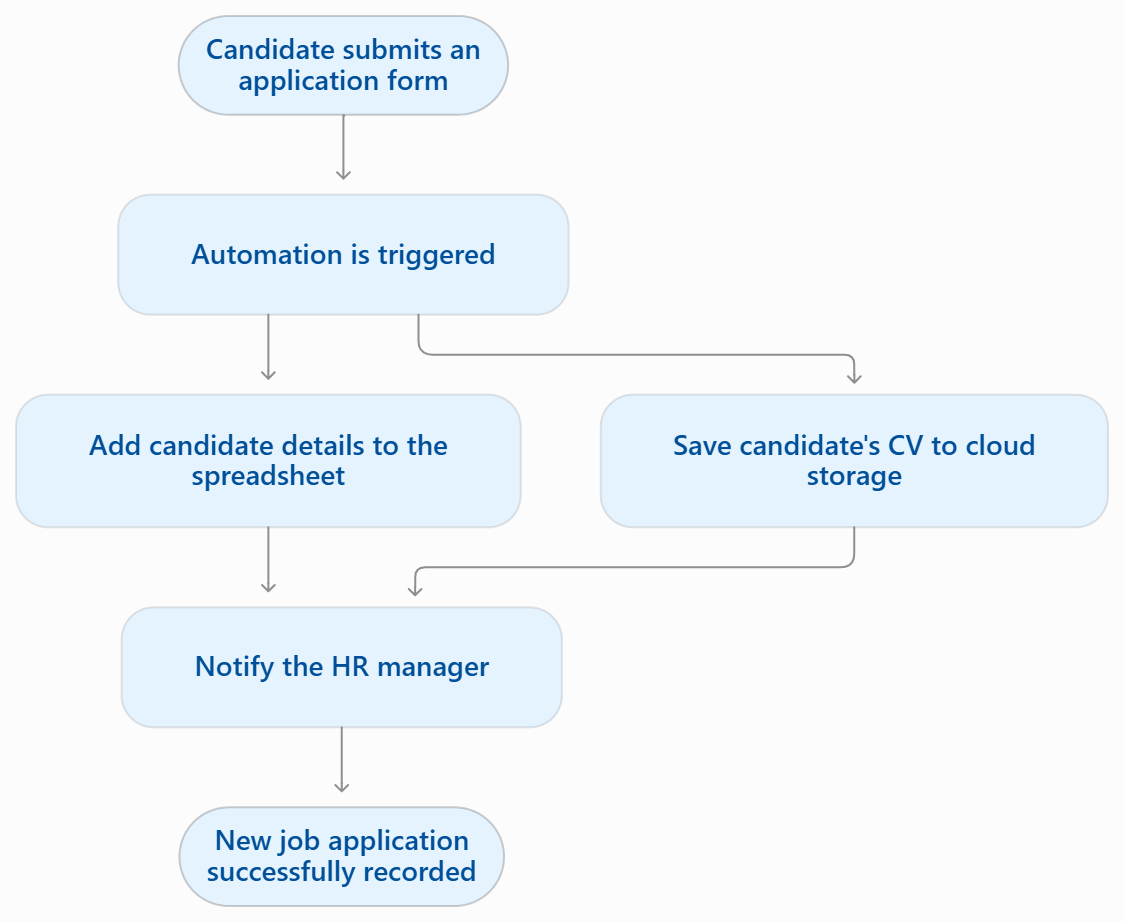
This is the basic principle behind tools such as Zapier and Make. Both use triggers and actions to connect applications and automate workflows.
Why Should You Automate Repetitive Office Tasks?
Automation isn’t simply about reducing the number of clicks required to complete a task. Its real value comes from improving how work moves through an organization.
Here are some important benefits.
1. Save Time on Routine Activities
Employees often spend considerable time performing small administrative activities, such as updating records, sending reminders, organizing documents, and preparing recurring reports.
Individually, these tasks might take only a few minutes. However, when repeated throughout the week, they can consume a significant portion of the working day.
Automating these processes allows employees to spend more time on planning, communication, problem-solving, and other responsibilities that require human attention.
2. Reduce Manual Errors
Copying information between applications, entering customer details, and updating spreadsheets manually can lead to mistakes.
Automation can transfer information between connected applications consistently, reducing the risk of common typing and duplication errors.
However, this does not mean automated systems are always accurate. Incorrect field mapping, missing information, and poorly configured rules can also produce mistakes. Proper testing remains essential.
3. Improve Team Productivity
When routine processes run automatically, employees don’t have to depend on one another for every small administrative update.
For example, a completed task in a project management system could automatically notify the relevant team member. Similarly, a new customer inquiry could be assigned to the appropriate department.
This reduces unnecessary follow-ups and helps teams maintain a more organized workflow.
4. Maintain Consistency Across Processes
Consider a company that sends confirmation emails to hundreds of customers every month.
If employees write each message manually, the wording, information, and response time may vary.
An automated workflow can use an approved template and predefined information to maintain consistent communication.
5. Make Better Use of Existing Resources
Small businesses don’t necessarily need to hire additional administrative staff just to handle increasing volumes of repetitive work.
With suitable automation, existing employees can manage routine processes more efficiently while focusing on activities that contribute more directly to business growth.
Which Office Tasks Can You Automate Without Coding?
Not every office activity requires automation, but many routine processes are good candidates, especially when they follow predictable rules.
Here are some practical examples across different departments.
1. Email Management and Follow-Ups
Email management is one of the easiest areas to automate. Employees often receive similar messages, attachments, reminders, and requests every day.
You can automate activities such as:
- Sorting incoming emails into predefined folders.
- Applying labels to messages from specific senders.
- Saving email attachments to cloud storage.
- Sending confirmation emails after receiving inquiries.
- Creating reminders for unanswered messages.
- Forwarding specific messages to the relevant department.
Practical example: When a customer submits an inquiry through your website, an automation can send an acknowledgment email and notify the sales team.
Useful tools: Gmail filters, Outlook rules, Zapier, and Make.
2. Data Entry and Spreadsheet Updates
Manually transferring information between forms, spreadsheets, and databases is time-consuming and creates opportunities for data-entry mistakes.
Automation can help you:
- Transfer form responses into spreadsheets.
- Update customer records.
- Synchronize contact information between applications.
- Organize records based on predefined categories.
- Identify missing information or duplicate entries.
- Generate recurring spreadsheet reports.
Practical example: When a customer fills out a Google Form, their name, email address, phone number, and inquiry can automatically appear in a Google Sheets database.
Useful tools: Google Forms, Google Sheets, Airtable, Zapier, and Make.
3. HR and Employee Management
HR departments manage numerous recurring activities, from recruitment and onboarding to employee communication and leave administration.
Some suitable automation opportunities include:
- Collecting job application information.
- Saving candidate documents in organized folders.
- Sending interview confirmation emails.
- Sharing onboarding documents with new employees.
- Sending reminders about pending employee forms.
- Notifying managers about submitted leave requests.
- Tracking upcoming employee anniversaries.
Practical example: When an applicant submits a recruitment form, their information can be added to a recruitment spreadsheet, their CV stored in a designated folder, and the HR team notified.
For sensitive activities such as hiring decisions, salary changes, and employee performance evaluations, keep an authorized human decision-maker involved.
Useful tools: Microsoft Forms, Google Forms, Airtable, Power Automate, and approved HR management platforms.
4. Document and File Management
Organizing files manually becomes increasingly difficult when employees handle large numbers of invoices, contracts, reports, and project documents.
You can automate:
- Saving email attachments to specific folders.
- Organizing files by project or document type.
- Creating folders when new projects begin.
- Backing up important documents.
- Sending notifications when shared files are updated.
- Applying consistent file-naming conventions.
Practical example: When an employee uploads a completed project report to a designated folder, the system can notify the project manager and record the submission date.
Useful tools: Google Drive, OneDrive, Dropbox, Zapier, and Power Automate.
5. Meeting Scheduling and Reminders
Scheduling meetings involves checking availability, sending invitations, sharing links, and reminding participants.
Automation can simplify these activities through:
- Sending meeting confirmation emails.
- Creating calendar events from approved booking requests.
- Sending reminders before scheduled meetings.
- Notifying participants about schedule changes.
- Collecting meeting availability through forms.
- Creating follow-up tasks after meetings.
Practical example: When a client books an available appointment through a scheduling form, an integrated workflow can create a calendar event and send a confirmation message.
Useful tools: Google Calendar, Microsoft Outlook, Calendly, and Zapier.
6. Report Generation and Distribution
Preparing weekly or monthly reports often requires collecting information from multiple sources, organizing figures, and sending updates to managers.
You can automate:
- Collecting data from connected applications.
- Updating spreadsheet dashboards.
- Calculating predefined performance metrics.
- Generating recurring summaries.
- Sending scheduled reports to managers.
- Notifying teams when specific targets are reached or missed.
Practical example: A sales team can use an automated workflow to collect daily sales entries in a spreadsheet and distribute a weekly summary to management.
Useful tools: Google Sheets, Microsoft Excel, Power BI, Airtable, and Make.
7. Customer Support and Feedback Collection
Customer support teams frequently handle similar questions, confirmation requests, feedback forms, and follow-up messages.
Possible automations include:
- Sending automatic inquiry acknowledgments.
- Assigning incoming support requests to departments.
- Categorizing common customer inquiries.
- Sending customer feedback forms.
- Notifying support agents about unresolved tickets.
- Creating follow-up reminders.
Practical example: When a customer submits a support request, the system can create a ticket, assign it to the appropriate team, and send a confirmation email.
Useful tools: HubSpot, Zendesk, Zapier, Make, and AI-powered customer support platforms.
8. Task and Project Management
You can automate:
- Creating tasks from submitted forms.
- Assigning tasks based on predefined categories.
- Sending deadline reminders.
- Updating project status when a task is completed.
- Notifying managers about overdue activities.
- Creating recurring tasks for weekly responsibilities.
Practical example: When a team member submits a completed task, the project management system can notify the team lead and move the task into the completed column.
Useful tools: Trello, Asana, ClickUp, Microsoft Planner, and Zapier.
Which Tasks Should You Automate First?
One common mistake is choosing a complicated process simply because it consumes a lot of time.
A better starting point is a small, frequently repeated task with clear instructions and predictable results.
Before selecting a task, consider these four factors:
| Factor | What to consider |
|---|---|
| Frequency | How often does the task occur? |
| Time required | How many minutes does each repetition take? |
| Rule clarity | Can you explain the process using clear, consistent rules? |
| Error impact | What happens if the automation makes a mistake? |
For example, sending a standard confirmation email after receiving a form submission is generally a better starting point than automating employee hiring decisions.
Best No-Code Tools to Automate Office Tasks
Choosing the right automation tool depends on the applications your organization already uses, the complexity of your workflows, and the level of control you need.
You don’t necessarily need an expensive automation platform. Some tasks can be handled using features already available in your email, spreadsheet, or office software.
Here are some useful options.
1. Zapier – Best for beginners
Zapier connects different applications using automated workflows called Zaps. You can configure a trigger in one application and specify actions in another.
Best for: Form submissions, email notifications, customer follow-ups, and transferring information between apps.
2. Make – Best for visual workflows
Make uses a visual workflow builder that allows users to connect applications, create conditions, and organize more complex processes.
Best for: Multi-step workflows, data processing, document routing, and conditional notifications.
3. Microsoft Power Automate – Best for Microsoft environments
Power Automate helps users create workflows across Microsoft services and supported third-party applications. It also offers desktop automation capabilities.
Best for: Outlook notifications, document approvals, Excel workflows, and Microsoft 365 processes.
4. Airtable
Airtable combines spreadsheet-style data management with database features and built-in automation capabilities.
Best for: Employee records, recruitment tracking, project databases, and structured business information.
5. Google Workspace
Google Forms, Sheets, Drive, and Gmail provide several built-in features that simplify everyday administrative activities. For example, Forms can notify users about new responses, while Sheets supports edit notifications.
Best for: Form submissions, spreadsheet updates, file organization, and basic notifications.
6. n8n
n8n provides a visual workflow builder for connecting applications, APIs, and AI services. It offers considerable flexibility, although more advanced workflows may require technical knowledge.
Best for: Complex integrations, customized business workflows, and AI-powered automation.
Quick comparison: Which tool should you choose?
| Tool | Best use case | Learning curve |
|---|---|---|
| Zapier | Simple app-to-app automation | Easy |
| Make | Visual multi-step workflows | Moderate |
| Power Automate | Microsoft-based workflows | Easy to moderate |
| Airtable | Database and record automation | Easy to moderate |
| Google Workspace | Everyday office activities | Easy |
| n8n | Advanced integrations and customization | Moderate to advanced |
Our recommendation: Start with the automation features already available in your existing office software. If you need to connect multiple applications, consider Zapier for straightforward workflows or Make for more visual, flexible processes. Explore n8n when you need greater customization.
These are general recommendations, not a universal ranking. Check current integrations, usage limits, pricing, and organizational approval requirements before selecting a platform.
How to Automate Repetitive Office Tasks Without Coding: A Step-by-Step Guide
Now that you understand the available tools and potential use cases, let’s look at how to build your first automation.
For this example, we’ll use a simple workflow that transfers information from Google Forms into Google Sheets and notifies the responsible employee.
Step 1: Identify a Repetitive Task
Start by identifying one activity that you or your team performs repeatedly.
Avoid choosing a complicated process initially. Look for something with clear instructions and predictable outcomes.
For example:
- Receiving customer inquiries.
- Collecting employee information.
- Recording job applications.
- Sending appointment confirmations.
- Updating a spreadsheet after receiving a form.
Write down how the task is currently completed, including every manual step.
Step 2: Map the Existing Workflow
Before opening an automation platform, understand how information moves through the process.
For example, consider an employee information collection process:
- An employee completes an online form.
- HR receives the submitted information.
- HR opens the spreadsheet.
- The employee’s details are entered manually.
- The HR manager receives a notification.
Now identify which steps can be performed automatically and which require human involvement.
This is important because automating an unclear or inefficient process can simply make mistakes happen faster.
Step 3: Choose an Appropriate Automation Tool
Select a platform that supports the applications involved in your workflow.
For our example, Google Forms and Google Sheets can handle information collection and storage. You can also use a connector platform such as Zapier or Make to create a workflow between them and a notification application.
Before connecting accounts, check whether your organization permits the selected tool.
Step 4: Create a Trigger
A trigger is the event that starts your automation.
For this example, the trigger will be:
A new response is submitted through Google Forms.
In a visual automation platform, select Google Forms as the starting application and choose the relevant new-response event.
Step 5: Add Automated Actions
Once the trigger is configured, decide what should happen next.
For example:
- Retrieve the submitted employee information.
- Add the information to the correct Google Sheets columns.
- Send a notification to the HR manager.
Make sure that each field is mapped correctly. For example, the employee’s email address should appear in the email column, not the phone number column.
Step 6: Test the Workflow
Never activate an automation without testing it.
Submit a sample form and check whether:
- The information appears in the correct spreadsheet.
- All required fields are transferred.
- Notifications reach the intended recipient.
- Duplicate entries are handled appropriately.
- Missing information doesn’t cause unexpected results.
Use fictional test information rather than real employee or customer data during initial testing.
Step 7: Activate and Monitor the Automation
Once the workflow works correctly, activate it.
However, don’t assume that an automation will continue working perfectly forever.
Monitor its execution history, review errors, and check whether connected applications or their permissions change.
Zapier’s official documentation, for example, separates workflow building, testing, and publishing into distinct stages. Make also provides execution history and workflow monitoring features.
How Can AI Make Office Automation Even Easier?
Traditional no-code automation is excellent for predictable tasks, but some workplace activities involve information that doesn’t always follow a fixed format.
This is where artificial intelligence becomes useful.
AI-powered automation combines traditional workflow automation with capabilities such as text generation, document analysis, classification, and information extraction.
For example, a traditional automation can forward every incoming customer email to a particular department. An AI-powered workflow could first analyze the message, identify its subject, and categorize it as a billing inquiry, technical issue, or general question.
The system can then route it to the appropriate department.
Here are some practical applications.
1. Summarizing Emails and Documents
AI tools can summarize lengthy emails, meeting notes, reports, and documents, helping employees understand important information without reading every detail manually.
2. Categorizing Incoming Messages
AI can analyze the content of incoming messages and categorize them according to predefined labels, such as complaints, inquiries, applications, or payment questions.
3. Extracting Information from Documents
AI-powered document processing can identify information such as invoice numbers, dates, vendor names, and amounts from supported documents.
Extracted information should still be validated before being used for financial or official records.
4. Preparing Routine Responses
AI can draft responses to frequently asked questions, prepare follow-up messages, and create email templates.
Employees can review and approve messages before sending them, particularly when communication involves customers, contracts, or sensitive information.
5. Creating Meeting Summaries and Action Items
AI meeting assistants can help convert meeting transcripts or notes into summaries, decisions, and suggested action items.
A team member should verify the summary before distributing it as an official record.
Traditional Automation vs. AI-Powered Automation
| Feature | Traditional automation | AI-powered automation |
|---|---|---|
| Main approach | Predefined rules | AI interpretation combined with workflows |
| Data handling | Structured information | Structured and unstructured information |
| Email processing | Filter using fixed conditions | Categorize messages based on their content |
| Document processing | Move or rename files | Extract and summarize information |
| Decision-making | Follows configured rules | Can interpret context and suggest actions |
| Best suited for | Predictable tasks | Tasks involving text, documents, and ambiguity |
These approaches are complementary. Traditional automation handles predictable actions, while AI can help interpret information that is difficult to manage using fixed rules alone.
Common Mistakes to Avoid When Automating Office Tasks
Automation can improve workplace efficiency, but poorly configured workflows can create additional problems.
Here are some mistakes worth avoiding.
1. Automating Everything at Once
Trying to automate multiple departments and processes simultaneously makes it difficult to identify problems.
Start with one small workflow, evaluate its performance, and expand gradually.
2. Automating an Inefficient Process
If employees follow unnecessary steps or use outdated procedures, automation may simply reproduce those inefficiencies.
Review and simplify the existing process before building an automated version.
3. Ignoring Data Privacy and Security
Office automation often involves employee information, customer records, financial documents, and internal business communication.
Before connecting applications:
- Check your organization’s automation and AI policies.
- Use approved applications and integrations.
- Give workflows only the permissions they require.
- Avoid sharing confidential information with unapproved AI tools.
- Use secure authentication and protect account credentials.
- Review who can access automated records and outputs.
4. Removing Human Oversight
Not every task should be completed automatically without review.
For example, an automation can collect job applications, organize CVs, and notify HR. However, final hiring decisions should remain with authorized employees.
Similarly, financial approvals, disciplinary actions, and sensitive customer communications should include appropriate human checkpoints.
5. Forgetting to Monitor Automated Workflows
Automations can fail because of expired connections, changed application permissions, missing information, or unexpected data formats.
Check workflow logs regularly and establish a process for reporting failures.
6. Failing to Document the Process
An automation should not depend entirely on the person who originally created it.
Document:
- What triggers the workflow.
- Which applications it connects.
- What actions it performs.
- Who owns and maintains it.
- What happens when an error occurs.
- How to pause or disable it.
This makes it easier for other employees to understand and maintain the workflow.
How to Measure Whether Your Office Automation Is Working
Creating an automation is only the beginning. You also need to determine whether it is actually improving productivity.
Instead of measuring success by the number of automated workflows, focus on measurable business outcomes.
Consider tracking these indicators:
| Metric | What it tells you |
|---|---|
| Time saved | How much manual work has been eliminated. |
| Error rate | Whether mistakes have increased or decreased. |
| Workflow success rate | How often the automation completes successfully. |
| Processing time | How quickly tasks move from start to completion. |
| Maintenance effort | How much time is spent fixing and monitoring the workflow. |
| Cost per task | Whether automation reduces overall processing costs. |
For example, if a process previously required 10 minutes per transaction and now requires only two minutes of human review, you have reduced the manual workload by eight minutes per transaction.
However, subtract the time spent building, testing, and maintaining the automation when calculating its overall return.
Frequently Asked Questions (FAQs)
1. Can I automate office tasks without knowing how to code?
Yes. Many automation platforms use visual builders that allow you to connect applications, configure triggers, and define actions without writing programming code. Tools such as Zapier, Make, and Microsoft Power Automate support various no-code workflows.
2. What is the easiest office task to automate?
Email notifications, form submissions, spreadsheet updates, and routine file organization are good starting points. These activities generally follow predictable instructions and can often be automated using built-in software features or simple integrations.
3. What is the best free tool for office automation?
There isn’t one universally best option. Google Workspace offers useful built-in features for everyday tasks, while platforms such as Zapier, Make, and n8n provide different automation capabilities and may offer free plans or editions with usage limitations. Check their current terms before choosing.
4. Can AI automate repetitive administrative tasks?
Yes. AI can assist with email categorization, document summarization, information extraction, meeting summaries, and routine response drafting. It can also work alongside traditional automation tools to transfer information between applications.
5. Is office automation suitable for small businesses?
Absolutely. Small businesses can automate customer inquiries, appointment confirmations, document organization, invoice notifications, and basic reporting without building expensive custom software.
6. Is no-code automation safe for company data?
It can be safe when implemented using approved tools, appropriate access permissions, secure authentication, and suitable data-handling policies. However, connecting an application to an automation platform may give that platform access to certain business information. Always review permissions and organizational security requirements before connecting accounts.
7. Can automation replace employees?
Automation can take over certain repetitive activities, but many workplace responsibilities require judgment, communication, creativity, and decision-making. Its practical value is often in reducing administrative workloads so employees can focus on more meaningful responsibilities.
8. How long does it take to automate a repetitive office task?
It depends on the complexity of the workflow and the applications involved. A simple notification or form-to-spreadsheet workflow may take relatively little time to configure, while a multi-step process involving several systems, conditions, and approval stages requires more planning and testing.
Final Thoughts
Learning how to automate repetitive office tasks without coding is no longer something reserved for developers or large technology companies. With the right tools and a clear understanding of your existing processes, employees and businesses can automate many everyday activities without writing a single line of code.
The best approach is to start small. Identify a task that consumes unnecessary time, map its steps, select an appropriate tool, and build a simple workflow. Test it carefully, monitor the results, and introduce human review wherever accuracy or judgment matters.
Remember, the goal isn’t to automate every activity in the workplace. It’s to eliminate unnecessary manual work while allowing people to focus on the tasks where their skills and decisions make the greatest difference.
